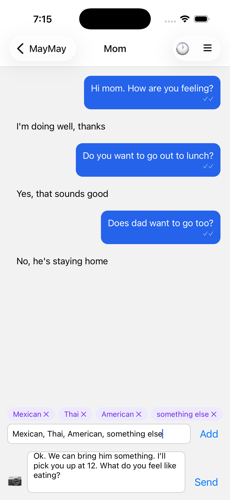
 Adding your own quick-reply options before sending
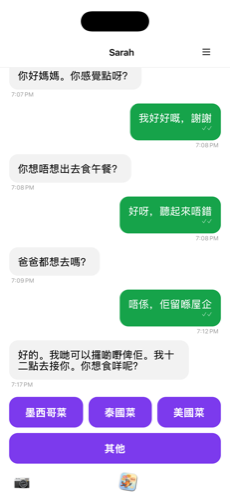 ...translated into buttons on their screen
A complete guide for family members
This guide covers every feature in the family member (caregiver) app in detail. For a quick start or FAQ, see the Support page.
The code expires after 15 minutes. If it expires before your senior enters it, open that pending conversation and tap Get a new code — no need to start over. The same screen also has a Remove option if you want to cancel the invitation instead.
Type your message in English and tap send — it's translated automatically into your senior's language before it reaches them. When they reply by tapping a button, their reply is translated back into English for you. MayMay is currently available in the US.
You can also attach quick-reply options to a specific message: tap + Add quick-reply options for this message below the text box before sending. For example, if you ask "What do you want for dinner?", add options like "Pizza" and "Soup" so your senior can answer with one tap instead of typing.
Adding your own quick-reply options before sending
...translated into buttons on their screen
Your senior never types — there is no text box on their side. Instead, every message you send arrives with 3–4 suggested answers generated to fit what you actually asked, written in their language. Ask "How are you feeling?" and the buttons might say "I'm doing well," "A little tired," or "Call me." The suggestions follow the recent conversation, so if you send a question and then a photo, the answers respond to both together — even a question about a third person (like "Does Dad want to go too?") gets buttons that actually address it, not generic yes/no options.
If you attach your own quick-reply options to a message (see above), those replace the suggested answers for that message.
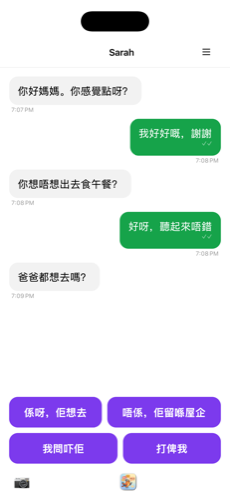 Suggestions stay relevant to what was actually asked
Presets are ready-made buttons that appear on your senior's screen for starting a conversation, even before you've sent anything. Open the thread's menu (☰) and tap Presets to add, remove, or reorder them for that person.
You can also set Default presets (from the main conversation list menu) — these are seeded automatically onto every new person you add, so you don't have to set them up each time.
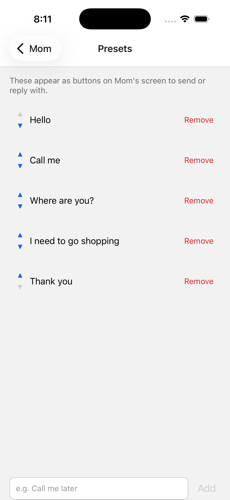 Add, remove, or reorder presets per person
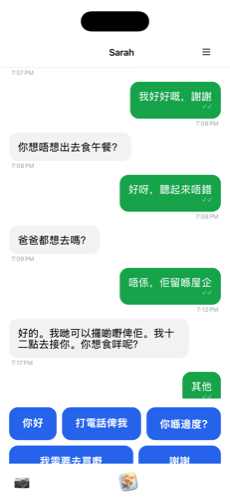 ...as tap-to-send buttons on their screen
Tap the camera icon (📷) next to the message box to send a photo from your camera or photo library — you can attach up to 4 photos in one message. Your senior can tap a received photo to view it full-screen, and can save it to their own photo library by long-pressing it or using the Save button.
If your senior sends you a photo of something written — a letter, a notice, a label — MayMay automatically reads and translates any text in the image for you.
Under each message you send, a small mark shows its status:
A single ✓ isn't necessarily bad news — it usually just means they haven't looked yet. The ⚠ warning is the one worth acting on.
For privacy, conversations aren't kept forever. From a thread's menu (☰), tap Message retention to choose how long messages stay visible: 1 day, 7 days (default), 14 days, or 30 days. Each person you're connected with can have its own setting.
Deletion isn't always exact — a message set to disappear after 7 days may occasionally stay visible for up to 3 extra days before it's actually removed. This is noted on the retention screen itself.
Two separate settings control text size:
Seniors can also adjust their own text size directly, using the − / + buttons next to "Text size" in their menu.
You can add more than one senior (tap Add person again), and a single senior can be connected to several family members at once — each connection has its own separate conversation. If your senior has more than one family member connected, they'll see a small unread-message badge appear on their Back button whenever another conversation has something new, so they know to check it.
Your conversation list is ordered by most recent activity. On your senior's side, conversations with unread messages move to the top so they never have to hunt for a new message.
Once you're connected to a senior, you can invite a sibling or other relative to connect with them too — no new pairing code on the senior's phone needed.
Invite codes rotate automatically every 7 days for safety, and you can get a fresh one anytime with Get a new code on the invite screen. When someone new joins, you may be asked whether they should be allowed to invite others too.
Each family member can also set their own name for the senior — if your sister set up "Mom" but she's your mother-in-law, use Manage Chats → Edit name to change what you see. It doesn't affect anyone else.
To remove someone: tap the menu (☰), then Manage Chats, and tap Remove next to that conversation. This is permanent — a new pairing code is needed to reconnect. The same screen also lets you rename the person (Edit name) and adjust their text size.
To delete your account entirely (removing all your conversations), tap the menu (☰), choose About, then Delete account.
Seniors don't create an account or sign in with an email or password — MayMay generates an anonymous, on-device identity when they redeem a pairing code, and it stays on that device. This is by design: seniors never hand over a password or personal login, so there's nothing to compromise if the phone is lost or shared. The tradeoff is that their identity isn't something that can be transferred, backed up, or moved to another device — it's tied to that one install.
If your senior gets a new phone, loses their old one, or has to reinstall MayMay, their old conversation can't be recovered onto the new device. To reconnect:
Preset messages and message history from the old conversation won't carry over — this creates a fresh conversation, just like connecting someone new.
This only applies to your senior. If you (the family member) get a new phone and already sign in with Google or Apple, just sign in again on the new device — your conversations are tied to your account, not the device.
Both sides are notified when a new message arrives, including a badge count on the app icon showing how many messages are waiting. Make sure notifications are turned on for MayMay in your phone's settings so you don't miss a message.